
 Introduction
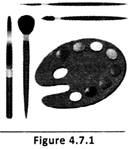
Have you ever imagined being a great artist and making masterpieces? Even if you are not one now, you can become one. One of the applications in Windows called Paint Brush will help you in this. Paint brush is a drawing program that is included with Microsoft Windows. It is a simple graphics editing program. Drawings created in this program can be used as wallpaper or your computer. Files created in Paint Brush are saved as bitmap files. The default file extension of a bitmap file is .bmp. (See Figure 4.7.1)
Introduction
Have you ever imagined being a great artist and making masterpieces? Even if you are not one now, you can become one. One of the applications in Windows called Paint Brush will help you in this. Paint brush is a drawing program that is included with Microsoft Windows. It is a simple graphics editing program. Drawings created in this program can be used as wallpaper or your computer. Files created in Paint Brush are saved as bitmap files. The default file extension of a bitmap file is .bmp. (See Figure 4.7.1)
 Renaming and Movements of Files
Sometimes you give your friends and pets new names. When using Windows, you can easily give new names to your files and folders.
Renaming and Movements of Files
Sometimes you give your friends and pets new names. When using Windows, you can easily give new names to your files and folders.
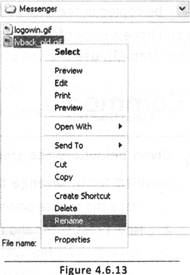
 Given below are the steps for renaming the files:
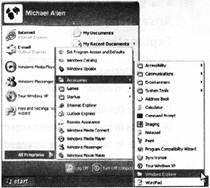
 Taking a file from one folder to another Just as you would change the location of your toys and books at times, you can even take a file from one folder and move it to another. Suppose you had created a Paint file and named it 'flower' and had saved it in the folder named My Documents. Later you feel that shifting it to a folder called Drawings would be more appropriate and easier to locate later. Here is one way to do this. Click Start, Select Programs and Select Windows Explorer. This is an application program that lists all folders, files, drives and other resources of your computer. It also helps you move files from one folder to another quickly. So, while you are in Windows Explorer, see where My Documents is.
Double-click it and all files in the folder will be listed.
Taking a file from one folder to another Just as you would change the location of your toys and books at times, you can even take a file from one folder and move it to another. Suppose you had created a Paint file and named it 'flower' and had saved it in the folder named My Documents. Later you feel that shifting it to a folder called Drawings would be more appropriate and easier to locate later. Here is one way to do this. Click Start, Select Programs and Select Windows Explorer. This is an application program that lists all folders, files, drives and other resources of your computer. It also helps you move files from one folder to another quickly. So, while you are in Windows Explorer, see where My Documents is.
Double-click it and all files in the folder will be listed.

 Given below are the steps for renaming the files. The steps are given in jumbled form, arrange them correctly.
1. Place the mouse pointer on that file which you want to rename.
2. Now press Enter and file icon appears with its new name.
3. You will see a box with the file's name and the name appears highlighted. Start typing the new name.
4. When you start typing its new name, the original name is deleted more...
Given below are the steps for renaming the files. The steps are given in jumbled form, arrange them correctly.
1. Place the mouse pointer on that file which you want to rename.
2. Now press Enter and file icon appears with its new name.
3. You will see a box with the file's name and the name appears highlighted. Start typing the new name.
4. When you start typing its new name, the original name is deleted more...  Keeping Track of Files
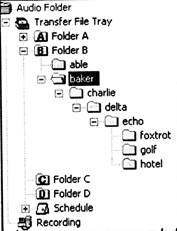
Imagine that you have a room filled with toys and you were given the job of organizing all the toys. You decide to start the job by sorting all the toys and grouping similar toys together. For example, you put all of your red marbles in a box and all of your blue marbles in another box and a II of your green marbles in the third box. Then, you put all of those boxes into a bigger box and label it "marbles". Then, you might even put the "marbles" box into a bigger box that contains boxes such as "tennis balls" and "baseballs". You would name that big box "balls". In this example, the toys are like files and the boxes are like folders. Your computer is set up to store similar files in specific folders. Then similar folders can be put inside other folders, and so on. After working on the computer for a while, you would have created a number of files. Folders help you to organize your files. You can put boxes within boxes. Likewise, you can keep folders inside a folder and then both of them within another folder. Deleting unwanted files, restoring required files and renaming files help you to keep track of your files, (See Figure 4.6.10)
Keeping Track of Files
Imagine that you have a room filled with toys and you were given the job of organizing all the toys. You decide to start the job by sorting all the toys and grouping similar toys together. For example, you put all of your red marbles in a box and all of your blue marbles in another box and a II of your green marbles in the third box. Then, you put all of those boxes into a bigger box and label it "marbles". Then, you might even put the "marbles" box into a bigger box that contains boxes such as "tennis balls" and "baseballs". You would name that big box "balls". In this example, the toys are like files and the boxes are like folders. Your computer is set up to store similar files in specific folders. Then similar folders can be put inside other folders, and so on. After working on the computer for a while, you would have created a number of files. Folders help you to organize your files. You can put boxes within boxes. Likewise, you can keep folders inside a folder and then both of them within another folder. Deleting unwanted files, restoring required files and renaming files help you to keep track of your files, (See Figure 4.6.10)
 Deleting a Folder or File
When some files become old and outdated, you may wish to remove them and free up space for other applications. It is very easy to delete any folder or files in Windows. (See Figure 4.6.11)
Deleting a Folder or File
When some files become old and outdated, you may wish to remove them and free up space for other applications. It is very easy to delete any folder or files in Windows. (See Figure 4.6.11)
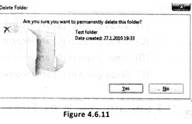
 The following method is used:
1.Click computer and move your mouse pointer to that disk wherethe folder is present.
2.select the folder which you wnat to delte and press delete key of the keyboard. You will see a warming before deletion.
3.Click Yes to confirm your action. The folder that was selected is now deleted.
Restoring Files and Folders
If a file or file has been deleted by mistake and Recycle Bin has not been emptied then that file or folder can be restored or recovered back. (See Figure 4.6.12)
The following method is used:
1.Click computer and move your mouse pointer to that disk wherethe folder is present.
2.select the folder which you wnat to delte and press delete key of the keyboard. You will see a warming before deletion.
3.Click Yes to confirm your action. The folder that was selected is now deleted.
Restoring Files and Folders
If a file or file has been deleted by mistake and Recycle Bin has not been emptied then that file or folder can be restored or recovered back. (See Figure 4.6.12)
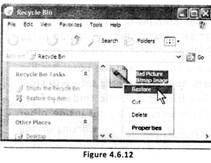 For this perform the following steps:
 more...
  Making Folders
Computer hard drives hold an enormous amount of data or information. It is very important that ail of the data is well organized. That's why it is easy for the computer to find what it is looking for. Knowing how a computer's organization system works will help you to find what you are looking for. Computers use files and folders to organize data. (See Figure 4.6.8)
Making Folders
Computer hard drives hold an enormous amount of data or information. It is very important that ail of the data is well organized. That's why it is easy for the computer to find what it is looking for. Knowing how a computer's organization system works will help you to find what you are looking for. Computers use files and folders to organize data. (See Figure 4.6.8)
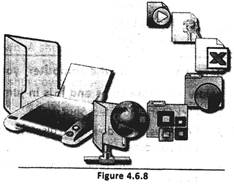 A file is a collection of data that is stored together. Files can be stored on a hard drive, a floppy disk or a CD. Everything that a computer does is based on data stored in files. You can do lots of things with files them, name them, rename them, save them or delete them. Certain files can even be looked at, listened to and run, in some ways, files are like television shows. All TV shows have 3 things, just like computer files; Name, Location, Length Just as you recognize your favorite TV program by its name, you can also recognize a file by its name. File names often consist of 2 parts: name and type. There are many different types of TV shows - comedies, dramas, cartoons, sports shows, game shows, etc. Similarly, computer files come in different types -text files, graphic files, program files, e-mail files, etc. In many computer systems, files are named so that you know what type of file it is just by looking at the abbreviation behind the name. A period is used to separate the name from the type, like this: "name type". One important thing that you should know about file types or extensions is that they are always written as abbreviations, usually with 3 letters. For example, a text file is shown as .txt and an executable program file is shown as exe. You may not always see the extension on a file name because many PCs offer the option of turning off the extension. TV Programs, like files, have specific lengths. TV shows may be 30 minutes long, 1 hour long or several hours long. Files are not measured in time, but in bytes. A byte is a measurement of stored data. Larger files may be measured in kilobytes or megabytes. The length of a file tells how much storage space that file is using within the computer.
 Folders or Directories
When a lot of files are stored inside a computer, it is very important to keep them organized. Folders are also known as Directories, keep 'files organized by grouping them together. When you have a number of files, it is important that you group them and keep them within a folder, like all text files in one folder and all picture files in another.
Folders or Directories
When a lot of files are stored inside a computer, it is very important to keep them organized. Folders are also known as Directories, keep 'files organized by grouping them together. When you have a number of files, it is important that you group them and keep them within a folder, like all text files in one folder and all picture files in another.
 more...
  Working with Paint
Paint is used for drawing and colouring. On the left hand side of the screen you see several icons in a rectangular box, called the Toolbox. Take the mouse pointer to the Pencil tool and click it. Using this Pencil you can draw whatever you want to draw in the blank space on the screen. As you draw keep the left button pressed. To make your picture colourful, you can select the desired colour from the colour palette and select the Fill with Color icon by clicking it. Click to fill the picture with the selected colour. If you wish to move a window around or to push it a little to the right, take the mouse pointer to the Title Bar, drag it (while keeping the left button pressed) and drop the window to a desired place.
Working with Paint
Paint is used for drawing and colouring. On the left hand side of the screen you see several icons in a rectangular box, called the Toolbox. Take the mouse pointer to the Pencil tool and click it. Using this Pencil you can draw whatever you want to draw in the blank space on the screen. As you draw keep the left button pressed. To make your picture colourful, you can select the desired colour from the colour palette and select the Fill with Color icon by clicking it. Click to fill the picture with the selected colour. If you wish to move a window around or to push it a little to the right, take the mouse pointer to the Title Bar, drag it (while keeping the left button pressed) and drop the window to a desired place.
 To save what you have drawn:
 Closing Paint
To close down Paint you can select File menu and select Close or click the close icon on the Title Bar. This will take you back to the Desktop.
Shutting Down Windows
Follow these steps before turning off your computer:
Closing Paint
To close down Paint you can select File menu and select Close or click the close icon on the Title Bar. This will take you back to the Desktop.
Shutting Down Windows
Follow these steps before turning off your computer:

 Tony and Bill are exchanging their information regarding Paint application. Read their statements and select who is correct among them.
Tony: After opening paint file, a rectangular box appears on the left hand side of the screen which is known as Toolbox and contain several icons.
Bill: But, I have never more...
Tony and Bill are exchanging their information regarding Paint application. Read their statements and select who is correct among them.
Tony: After opening paint file, a rectangular box appears on the left hand side of the screen which is known as Toolbox and contain several icons.
Bill: But, I have never more...  Starting and Application
You have learned some useful information about Windows, now you will learn to work with one of its applications. We will select an application called Paint, which is often used for drawing and painting. It helps you create simple drawings.
Starting and Application
You have learned some useful information about Windows, now you will learn to work with one of its applications. We will select an application called Paint, which is often used for drawing and painting. It helps you create simple drawings.
 Steps to start the Paint application.
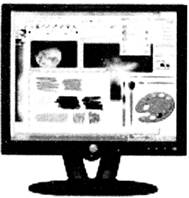 There is another easier way to open Paint (or any other application). You can double- click on the Paint icon, if it is there on the Desktop. This is a shortcut to open an application you want to work with. Well, having opened Paint, let us become familiar with some common items of a window and their functions. Title Bar is a horizontal bar on the top of the window. The title bar tells you in which application you are working. In this case, it tells you that the window that is opened before you is that of an application program called Paint. Close button is located at the upper right corner. The window will close if you click this button. With that the application will close too. Minimize button is again located at the upper right corner. You can click this button to minimize the window. Now the window will be available on the Taskbar. You can see its name there and the icons for restoring it back to its usual size or for closing it. Maximize button is for bringing the window back to full screen. Once the window occupies the entire screen, the maximizing button is replaced by the restore button. Menu Bar displays the menus that are available with an application and the items on each one of the menus. Scroll Bars work like lift boxes. There are two of them. One is for horizontal and the other for vertical movements. They help to move text (or any other object) up and down or left and right. Resize for resizing a window, take the mouse pointer to the corner of the window to get a double headed arrow. Click and drag to increase or decrease the size of the window diagonally. If you take the pointer to any of the four sides of the window, you get the double headed cursor. By clicking and dragging you can perform the same operation horizontally or vertically.

 Given below are the Steps to start the Paint application. The steps are given more...
  Desktop, Taskbar and windows
When you first switch on your machine, the Windows operating system loads and the first screen which appears is called the Desktop. (See Figure 4.6.1)
Desktop, Taskbar and windows
When you first switch on your machine, the Windows operating system loads and the first screen which appears is called the Desktop. (See Figure 4.6.1)
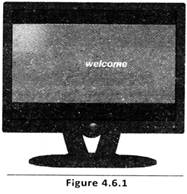 Desktop is the main background screen of a computer. (See Figure 4.6.2)
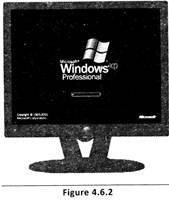 It is the background for all programs and contains the commands needed for accessing those programs. It is like your personal work area. Actually you get a feel of what is inside your computer. Several icons or small pictures are located on the left side of the Desktop. You can use your Desktop for many tasks such as opening programs, copying files, connecting to the Internet and so on. Certain icons are a permanent fixture on the Desktop. The user can put other icons on the Desktop that will quickly access programs or files - like a shortcut. Icons can be moved around on the desktop by clicking and dragging them. You may have used the Paint icon in your computer lab for drawing pictures. The user interface is the part of the operating system that interacts with the computer user directly, allowing them to control and use programs. The user interface may be graphical with icons and a Desktop or textual with a command line. It is very easy to work with Windows because it uses a GUI (Graphical User Interface) and offers graphical icons instead of text and you need not remember any commands.
Icons are small graphical images that can represent your computer's programs, files, folders and printers. You also see a Taskbar, a grey bar, usually at the bottom of the Desktop. The Taskbar gives the current status of the screen. The Desktop got its name because it looks like an office desk, with a number of tools and other objects that you can use in your work. (See Figure 4.6.3)
It is the background for all programs and contains the commands needed for accessing those programs. It is like your personal work area. Actually you get a feel of what is inside your computer. Several icons or small pictures are located on the left side of the Desktop. You can use your Desktop for many tasks such as opening programs, copying files, connecting to the Internet and so on. Certain icons are a permanent fixture on the Desktop. The user can put other icons on the Desktop that will quickly access programs or files - like a shortcut. Icons can be moved around on the desktop by clicking and dragging them. You may have used the Paint icon in your computer lab for drawing pictures. The user interface is the part of the operating system that interacts with the computer user directly, allowing them to control and use programs. The user interface may be graphical with icons and a Desktop or textual with a command line. It is very easy to work with Windows because it uses a GUI (Graphical User Interface) and offers graphical icons instead of text and you need not remember any commands.
Icons are small graphical images that can represent your computer's programs, files, folders and printers. You also see a Taskbar, a grey bar, usually at the bottom of the Desktop. The Taskbar gives the current status of the screen. The Desktop got its name because it looks like an office desk, with a number of tools and other objects that you can use in your work. (See Figure 4.6.3)
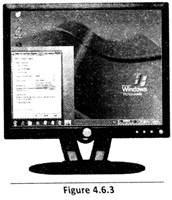 At one end of the Taskbar you have the start button which is very important. The other end has the System Tray, which usually has the clock display and pictures or icons that represent some services that might be running - the background. The Taskbar helps you to access programs and files. You may see icons on the taskbar too. These are called "Quick Launch" icons that allow one- click access to frequently used programs. If you click "start", a box called a menu will appear. The menu will contain several words. Some words will have arrows next to them that more...
  Introduction
Many of us do multitasking or multiple things at the same time. For example, we love to watch TV programs and eat munch popcorn at the same time. Inside your computer there is one program that manages all the other programs and enables you to switch between different programs or applications. This program is called Windows, which is the most popular OS (Operating System) that controls the working of the computer. An operating system provides the link or interface between the computer hardware and the user. The user does not have to know how the OS does this. The OS looks after the flow of data between the processor and its peripherals, organizes the allocation of memory to the programs that are running, organizes the filing system and manages the security system of the computer and user access to the files. The Windows can come in different versions (such as Windows 95, Windows 98 and Windows 2000). Windows is a wonderful program because you can do many things with it ? play games, write a letter, listen to music and paint at the same time. Let's learn how to work with Windows. You don't have to do anything special to start Windows. When you switch on the computer. Windows will start automatically.
Introduction
Many of us do multitasking or multiple things at the same time. For example, we love to watch TV programs and eat munch popcorn at the same time. Inside your computer there is one program that manages all the other programs and enables you to switch between different programs or applications. This program is called Windows, which is the most popular OS (Operating System) that controls the working of the computer. An operating system provides the link or interface between the computer hardware and the user. The user does not have to know how the OS does this. The OS looks after the flow of data between the processor and its peripherals, organizes the allocation of memory to the programs that are running, organizes the filing system and manages the security system of the computer and user access to the files. The Windows can come in different versions (such as Windows 95, Windows 98 and Windows 2000). Windows is a wonderful program because you can do many things with it ? play games, write a letter, listen to music and paint at the same time. Let's learn how to work with Windows. You don't have to do anything special to start Windows. When you switch on the computer. Windows will start automatically.  High Level Programming Languages (HLL)
Machine language and assembly language are machine dependent. Each time we need to change code according to the requirement of machines. Therefore, the need for a new type of language arose. The 3rd generation programming languages (also known as High Level Programming languages) were designed to suit the requirements of the programmer. These are independent of the internal machine code of any particular computer. High level languages are used to solve problems and are often described as problem-oriented languages.
High Level Programming Languages (HLL)
Machine language and assembly language are machine dependent. Each time we need to change code according to the requirement of machines. Therefore, the need for a new type of language arose. The 3rd generation programming languages (also known as High Level Programming languages) were designed to suit the requirements of the programmer. These are independent of the internal machine code of any particular computer. High level languages are used to solve problems and are often described as problem-oriented languages.
 OBOL is used to write programs solving business problems and FORTRAN is used or programs solving scientific and mathematical problems. Other examples include Java, C++, Python, BASIC, Pascal, etc. A programming language that is machine-independent is called a "high-level" language. It lets the programmer concentrate on the logic of the problem to be solved rather than the details of the machine architecture required with low-level assembly languages. HLL is a programming language in which instructions are written in a language that resembles human language. It has human sounding words and syntax (like words in a sentence). These normally use statements consisting of English-like keywords such as "FOR", "PRINT" or "GOTO", where each statement corresponds to several machine language instructions. It is much easier to program in a high- level language than in assembly language though the efficiency of execution depends on how good the compiler or interpreter is at optimizing the program. In order for the computer to understand any HLL, a compiler translates the high level language into either assembly language or machine code. All programming languages need to be eventually translated into machine code for a computer to use the instructions they contain. The most useful aspect of an HLL (High Level Language) is that the language is written in a form you can easily understand - there are no cryptic assembler commands to remember and most commands are made up of several machine code instructions which save coding effort.
 Advantages of HLL:

 Fill in the blanks:
1. The 3rd generation programming languages are also known as _____ programming languages.
2. In HLL, a ______ translates the high level language into machine code.
3. HLL is a programming language in which instructions are written in a language that resembles ________.
(A) Low level, Interpreter, Machine language
(B) High level, Compiler, Human language
(C) Medium level. Assembler, Machine code
(D) High level, Interpreter, Human language
(E) Low level, Compiler, Machine language
Answer: (b)
Explanation
Correct Option:
(B) Options given in more...
Fill in the blanks:
1. The 3rd generation programming languages are also known as _____ programming languages.
2. In HLL, a ______ translates the high level language into machine code.
3. HLL is a programming language in which instructions are written in a language that resembles ________.
(A) Low level, Interpreter, Machine language
(B) High level, Compiler, Human language
(C) Medium level. Assembler, Machine code
(D) High level, Interpreter, Human language
(E) Low level, Compiler, Machine language
Answer: (b)
Explanation
Correct Option:
(B) Options given in more...  Low level Programming Languages (LLL)
Like use languages like English, French and Japanese. Computers use languages like machine language and assembly language. Low-level programming languages are programming languages that closely reflect the machine code of specific computers and are therefore described as machine-oriented languages. In computer science, a low-level programming language is that which interact with the hardware directly. Because of this, low-level languages are sometimes described as being "close to the hardware." A low-level language does not need a compiler or interpreter to run. Low-level programming languages are sometimes divided into two categories:
Low level Programming Languages (LLL)
Like use languages like English, French and Japanese. Computers use languages like machine language and assembly language. Low-level programming languages are programming languages that closely reflect the machine code of specific computers and are therefore described as machine-oriented languages. In computer science, a low-level programming language is that which interact with the hardware directly. Because of this, low-level languages are sometimes described as being "close to the hardware." A low-level language does not need a compiler or interpreter to run. Low-level programming languages are sometimes divided into two categories: 




You need to login to perform this action.
You will be redirected in
3 sec